What Is HEIC and Why Does iPhone Use It?
HEIC (High Efficiency Image Container) is Apple's implementation of the HEIF format. It stores the same image data as JPEG in roughly half the file size. Apple switched to HEIC as default starting with iOS 11 and it has been the standard ever since.
The problem is compatibility. HEIC works perfectly across Apple devices — iPhone, iPad, Mac — but Windows cannot open it natively. Android support is spotty. Many websites, CMS platforms, and enterprise tools reject HEIC files outright. If you share photos outside the Apple ecosystem, you need JPEG.
For reference, a single 12MP photo from my iPhone 15 Pro takes about 1.8MB as HEIC and around 3.5MB as JPEG. That is a significant saving on storage, but the tradeoff is that nobody else can open it.
Method 1: Change iPhone Camera Settings (Best)
The most reliable solution: tell your iPhone to stop using HEIC.
- Open Settings → Camera → Formats
- Change from "High Efficiency" to "Most Compatible"
That is it. All future photos will be JPEG. There are two downsides: files are roughly 2× larger, and Live Photos are preserved as separate image and video files instead of a single HEIC container. For everyday use, the storage tradeoff is worth the compatibility.
Note: this only affects new photos. Old HEIC files stay HEIC.
Method 2: PicFix Format Converter (Fastest for Occasional Use)
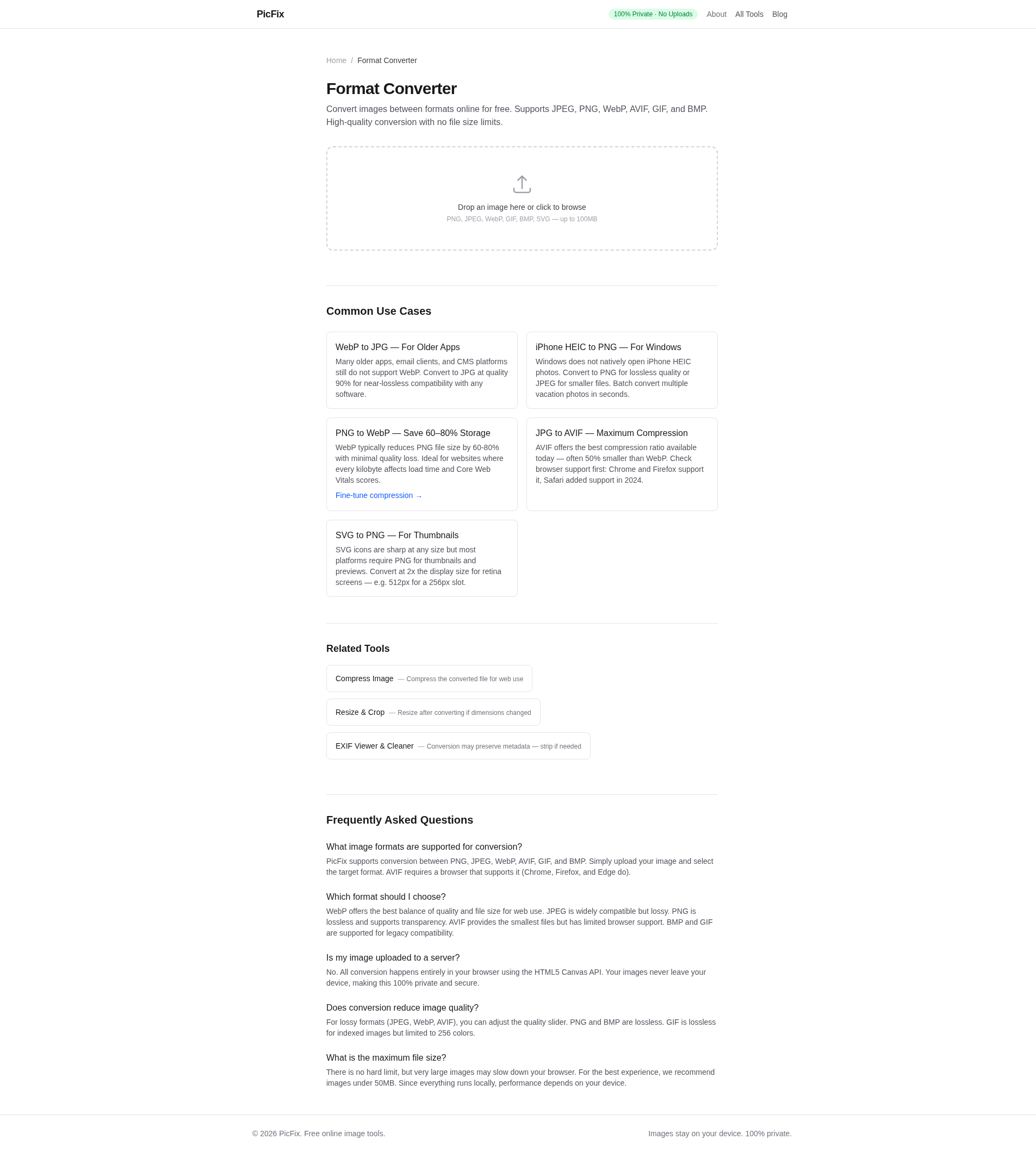
If you already have HEIC files or only need to convert occasionally, use an online converter. PicFix's free format converter handles JPEG, PNG, WebP, and AVIF output — all in your browser, with no upload to any server.
One honest limitation: the Canvas API that PicFix uses supports HEIC in some browsers (Safari on macOS, recent Chrome on Android) but not universally. If your browser does support it, you just drop the HEIC file and choose JPEG output. If not, convert HEIC to JPEG in your iPhone settings first, then use PicFix to optimize further.
Method 3: AirDrop to Mac
AirDrop from iPhone to Mac. On the receiving Mac, open the image in Preview and go to File → Export. Set format to JPEG. Quick, no third party involved, but requires a Mac within AirDrop range.
If you use Image Capture on Mac instead of Photos, you can set the import format to JPEG at the bottom of the window. New imports land as JPEG automatically.
Method 4: Third-Party Apps
Several dedicated HEIC converters exist on the App Store and web. The ones worth mentioning:
- CopyTrans HEIC for Windows — adds HEIC support to Windows so it opens like any other file. Free.
- iMazing HEIC Converter — drag-and-drop desktop converter for macOS and Windows. Free.
- HEIC to JPEG (App Store) — converts in bulk on iPhone. There are many of these. Check privacy policies before uploading personal photos.
I used CopyTrans on my work Windows laptop for a while. It works but adds yet another background service to a machine already running too many of them.
Which Method Wins?
My ranking after living with this for two years:
- Change iPhone settings to Most Compatible — one time setup, zero ongoing friction. Storage penalty but total peace of mind.
- PicFix converter — best when you need to convert specific files on demand. No install, private, works on any device.
- AirDrop to Mac — convenient if both devices are nearby and you prefer native Apple tools.
- Third-party apps — useful for batch conversion or when the browser approach does not work. Watch for privacy.
This ranking is based on my own workflow. If you take thousands of photos and need storage efficiency, keeping HEIC and batch-converting only on export might work better. Different use case.
HEIC vs JPEG: Quick Comparison
| HEIC | JPEG | |
|---|---|---|
| File size (12MP) | ~1.8 MB | ~3.5 MB |
| Windows support | No | Yes |
| Web uploads | Often rejected | Universal |
| Quality | Better at same size | Standard |
| Live Photos | Single file | Separate photo + video |
Convert your HEIC photos now
Use PicFix's free format converter to turn HEIC photos into JPEG, PNG, or WebP. No uploads, no accounts — your photos stay on your device. Once converted, you can also compress them further to save even more space for web use.