What Is Base64?
Base64 is a way to represent binary data — like an image — as a string of text. It takes every 3 bytes of the original file and converts them into 4 ASCII characters. The result looks like a random block of letters, numbers, and symbols, but it is actually your image encoded as plain text.
Why would you want to turn a perfectly good image into text? Because some contexts only accept text: HTML attributes, CSS values, JSON payloads, email bodies, XML documents, SVG files. Base64 lets you squeeze an image into those formats without needing a separate file or URL.
The trade-off is simple: the encoded string is roughly 33% larger than the original file. A 100KB image becomes about 133KB of Base64 text. For small images — logos, icons, thumbnails — this is usually fine. For a 5MB photo, it is not.
When Do You Need Image to Base64?
HTML inline images
Instead of <img src="logo.png">, you write <img src="data:image/png;base64,iVBOR...">. The image loads without a separate HTTP request. This matters for small assets on high-latency connections — your logo on a landing page, for example.
CSS background images
Same idea: instead of background-image: url('pattern.png'), you use background-image: url(data:image/png;base64,...). Useful for small patterns, icons, or decorative elements that are part of your CSS.
Email signatures
Many email clients block externally hosted images by default. Embedding your logo as Base64 in the HTML signature means it displays even when remote images are blocked. Not all email clients support this — Outlook is notoriously bad at it — but Gmail, Apple Mail, and most web clients handle it fine.
JSON APIs and data transfer
When your API needs to send or receive images as part of a JSON payload, Base64 is the standard encoding. You cannot embed raw binary in JSON — it only supports text. A common pattern is {"avatar": "data:image/jpeg;base64,..."}.
SVG files
SVG is an XML format. You can embed raster images inside SVG using Base64. This is how many icon systems work — the SVG wrapper contains the raster icon data as a Base64 string.
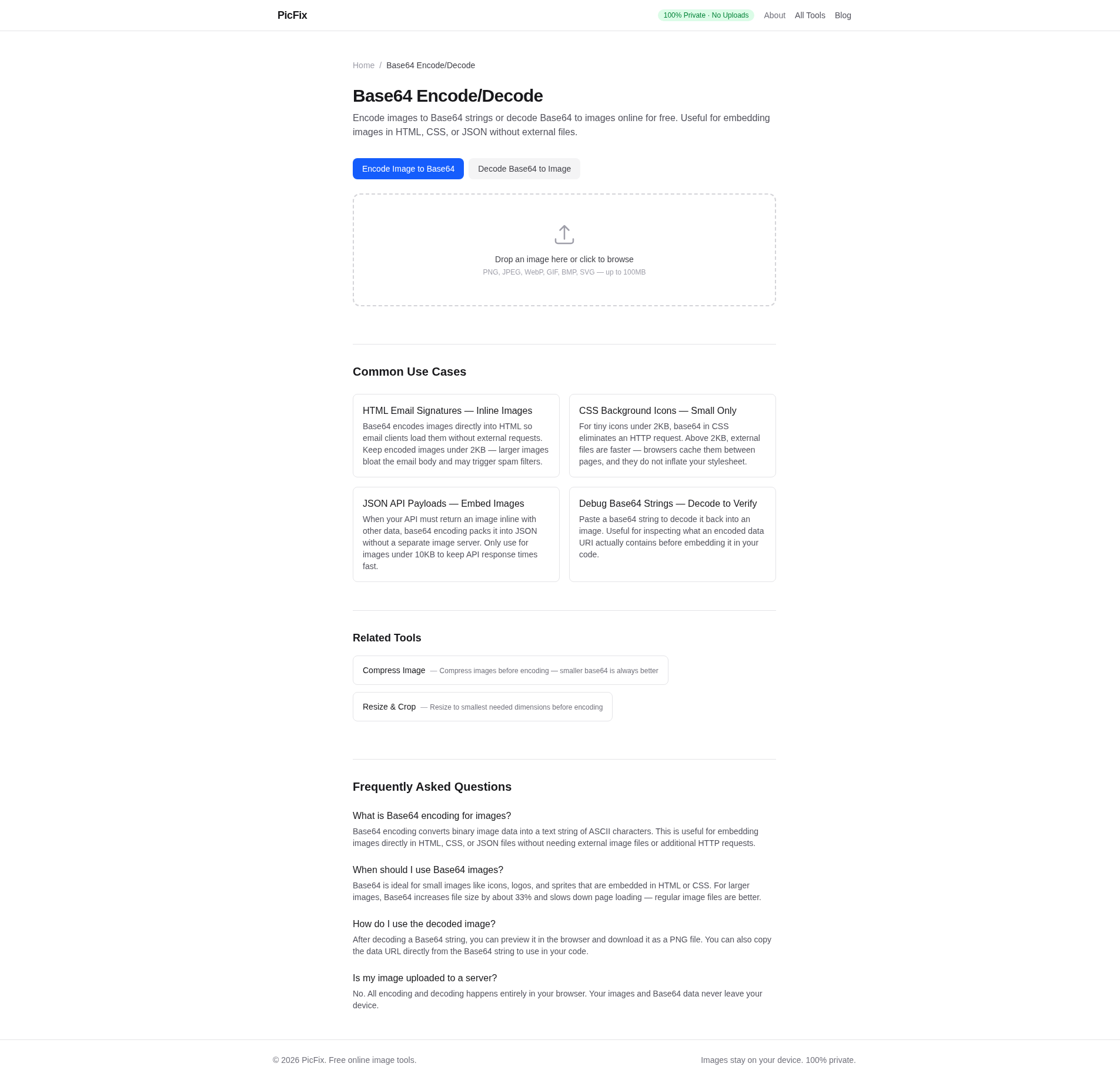
How to Convert Image to Base64 with PicFix
- Open PicFix's Base64 Encode/Decode tool.
- Drop your image into the upload area. PNG, JPEG, WebP, GIF, and BMP all work.
- PicFix immediately shows the Base64 string. You get two output options:
- Raw Base64 string — just the encoded text, no prefix. Use this when you need the raw data for an API or custom format.
- Data URI — prefixed with
data:image/png;base64,. Use this directly in HTMLsrcattributes or CSS.
- Click the copy button. Paste it wherever you need it.
- To go the other direction — decode a Base64 string back to an image — paste the string into the decode field and download the result.
Everything happens in your browser. The image never leaves your device — no server upload, no third-party access.
PNG vs JPEG vs WebP: Which Format to Encode
The Base64 encoding process is format-agnostic — it just reads the raw bytes and converts them. But the choice of source format matters for the output size:
- PNG — lossless, supports transparency. Use for logos, icons, and images with sharp edges. The Base64 string will be larger than JPEG for photos.
- JPEG — lossy, smaller files. Use for photos and complex images where perfect quality is not critical. The Base64 string will be significantly shorter than PNG.
- WebP — modern format, smaller than both PNG and JPEG at similar quality. Best choice for minimizing Base64 string length. Browser support for WebP data URIs is excellent in 2026.
- GIF — supports animation but Base64 encoding only captures the first frame. If you need animated GIFs in Base64, the animation will be lost.
If file size is your primary concern, compress the image first before encoding. A 50KB JPEG becomes a much more manageable Base64 string than a 500KB one. If your source image needs format conversion — say you have a BMP and want WebP — use PicFix format converter first.
Base64 Pros and Cons: The Honest Version
Pros
- Fewer HTTP requests. The image is part of the HTML or CSS file. One request instead of two.
- No CORS issues. Since the image is inline, you do not need to worry about cross-origin resource sharing policies.
- Works offline. Once the HTML is loaded, the image is there — no dependency on an external URL.
- Private. The image data is embedded, not fetched from a third-party server.
Cons
- 33% size increase. Base64 encoding inflates the original file by a third. For large images, this is wasteful.
- No browser caching. A regular image file is cached by the browser independently. A Base64 string is part of the HTML document — if the HTML is re-downloaded, the image data is re-downloaded too, even if the image has not changed.
- Slower rendering. The browser must decode the Base64 string before it can display the image. For large images, this adds a noticeable delay.
- Harder to maintain. Changing an image means re-generating the entire Base64 string and updating the code. With a regular image file, you just replace the file.
- Not suitable for large images. A 2MB photo becomes a 2.6MB text string. That is a lot of inline data.
The rule of thumb: use Base64 for small, critical images — logos, icons, decorative elements under 20KB. For everything else, a regular image file with proper caching is better.
Common Base64 Mistakes to Avoid
- Encoding large photos. A 5MB image becomes ~6.7MB of Base64 text. Your HTML file will be enormous. Compress first, or skip Base64 entirely for anything over 50KB.
- Forgetting the data URI prefix. Raw Base64 without
data:image/png;base64,will not render in an HTMLsrcattribute. PicFix gives you both formats — pick the right one. - Using Base64 for images that change frequently.If you update your logo every week, Base64 means re-deploying your entire HTML every time. Static image files are easier to swap.
- Ignoring cacheability. Static image files can be served with long cache headers. Base64 strings inside HTML cannot. For repeat visitors, regular images load faster after the first visit.
When to Skip Base64 Entirely
Base64 is a useful tool, but it is not always the right one. Skip it when:
- The image is larger than 50KB — use a regular compressed image with caching instead.
- The image changes frequently — regular files are easier to update and cache.
- You need the image on multiple pages — each page with Base64 duplicates the data.
- You are building for performance at scale — HTTP/2 and CDN caching make separate image files faster than Base64 in most real-world scenarios.
Modern web performance best practices generally favor separate image files with proper caching and CDN delivery over Base64 encoding. Base64 shines in specific, narrow use cases — not as a universal replacement for image files.
Ready to convert your image?
PicFix encodes and decodes Base64 entirely in your browser — no upload, no server, no third-party access. Supports PNG, JPEG, WebP, GIF, and BMP. Also try compressing first to get a shorter Base64 string.