Why Blur Is Better Than the Marker Tool
Most people use the marker or crayon tool in their screenshot app to cover sensitive info. This is dangerous. The marker applies an opaque stroke on top of the image — but the underlying data is still there. If someone opens the image in an editor and adjusts levels or contrast, the hidden text can become readable again.
A 2017 study demonstrated this: black marker over text in a screenshot could be reversed in most cases with a simple curves adjustment in Photoshop. Blur, when applied strongly enough, is harder to reverse because it discards pixel data permanently.
The safest method is to replace the area entirely with a solid color block. Blur is a middle ground — convenient while being significantly more secure than drawing over it.
Method 1: Gaussian Blur (Best Balance)
Gaussian blur applies a mathematical blur that averages pixels in a radius. At a high enough radius, text becomes unreadable and cannot be reconstructed.
The key setting is the blur radius. For text redaction, use a minimum radius of 10-15 pixels. At radius 5, some characters remain identifiable. At radius 15, text is completely gone.
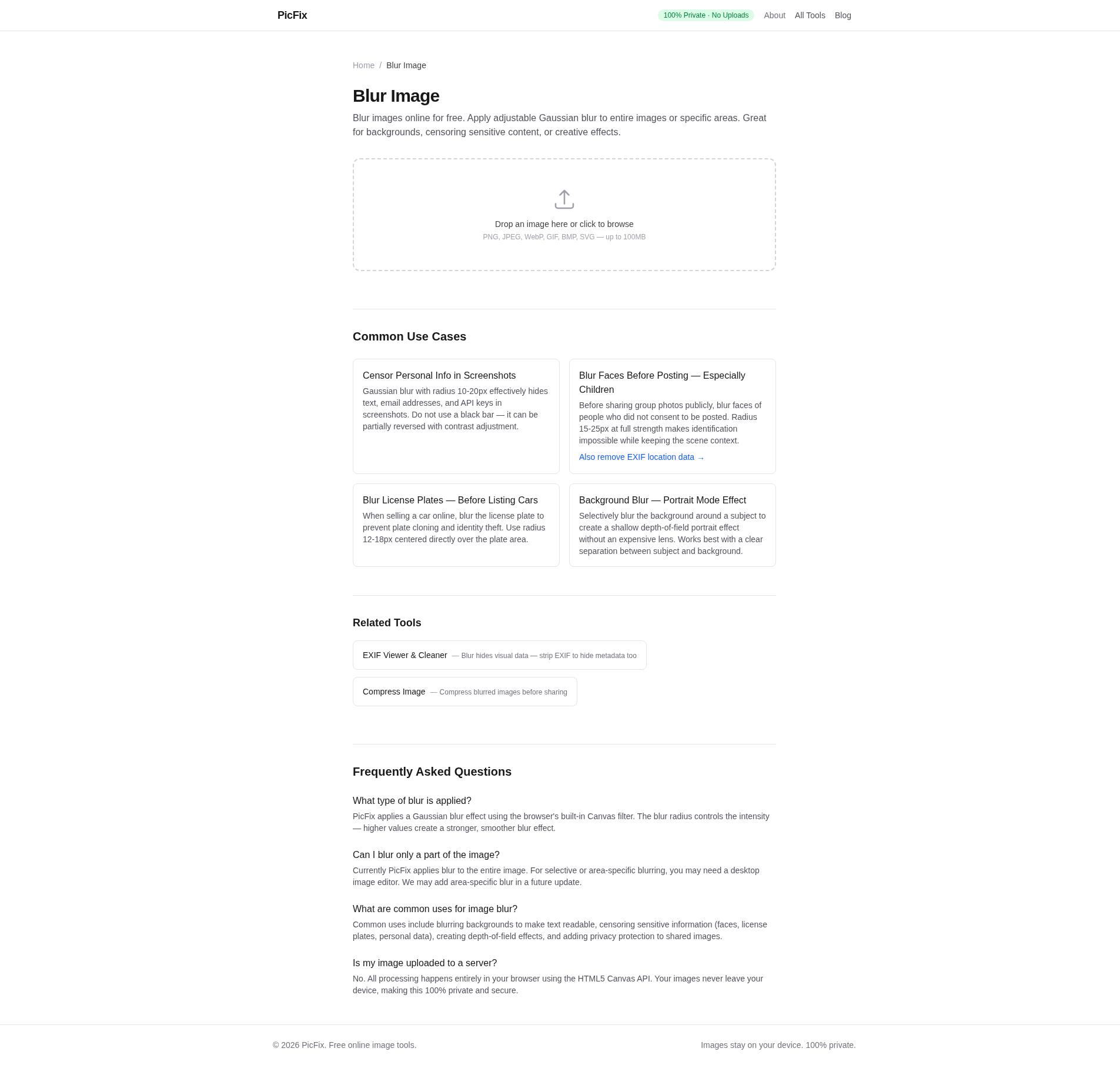
PicFix's blur tool applies adjustable Gaussian blur. The limitation: it blurs the entire image, not a selected area. For local blur on specific regions, you need to crop the sensitive area first, blur it, then composite back. I hope PicFix adds a selective blur feature in the future.
Method 2: Pixelation / Mosaic
Pixelation replaces the sensitive area with large visible pixels. It is more visually obvious than blur, which some people prefer as proof that content was redacted.
The safety of pixelation depends on block size. Small block sizes (4×4 or 8×8) can sometimes be reverse-engineered, especially for short text on a uniform background. Use at least 16×16 pixel blocks for text redaction.
PicFix does not currently have a pixelation tool. For pixelation, you can use Squoosh or GIMP. I am noting this as a feature gap.
Method 3: Solid Color Overlay (Most Secure)
Replace the sensitive area with a solid black, white, or gray rectangle. This is the most secure method because there is literally no information left to recover.
The downside is that it is obvious something was removed, which may make your screenshot look suspicious. For most support forums and social media posts, this is actually desirable — it proves you deliberately redacted information rather than forgetting to include it.
Method 4: Crop It Out
If the sensitive information is at the edge of the screenshot, crop it. Simple, zero artifacts, and no redaction needed. This works for browser toolbars, notification areas, and status bars.
Use PicFix's resize tool to crop the area. Make sure you leave enough margin that the crop looks intentional rather than suspicious.
Common Mistakes
- Blurring too lightly. If I can still read the text by squinting, so can someone with a curves adjustment. Over-blur. It is better to blur too much than too little.
- Leaving context clues.Blurring a username but leaving the "@" symbol and the domain visible. The blur is meaningless if surrounding context reveals the content.
- Forgetting metadata.The screenshot itself may contain EXIF data or filenames that leak information. Strip metadata with PicFix's EXIF viewer before sharing.
- Using the same blur for different content types.A credit card number needs stronger blur than a generic username. Adjust radius per sensitivity level.
My Redaction Workflow
These days I follow this sequence before sharing any screenshot publicly:
- Crop the screenshot to remove obvious UI elements
- Apply Gaussian blur at radius 15 to any text that should not be visible
- For highly sensitive info (email, phone, address), replace with a solid color block
- Strip EXIF metadata to remove camera/device info and timestamps
- Review the result at 200% zoom to confirm nothing is readable
The whole process takes about 30 seconds and has saved me from at least two embarrassing leaks.
Blur your screenshots now
Use PicFix's free blur tool to redact sensitive information. Adjustable Gaussian blur, no uploads required. Also check what hidden data your image carries with the EXIF viewer before sharing.